KNOWLEDGEBASE · HOW TO (SHARED HOSTING)
How to install your Free SSL Certificate on your website?
Last updated 2020-04-02
Installing your free SSL Certificate (Let's Encrypt)
It's really easy to secure your website with IndicHosts.Net Hosting, completely free of charge.
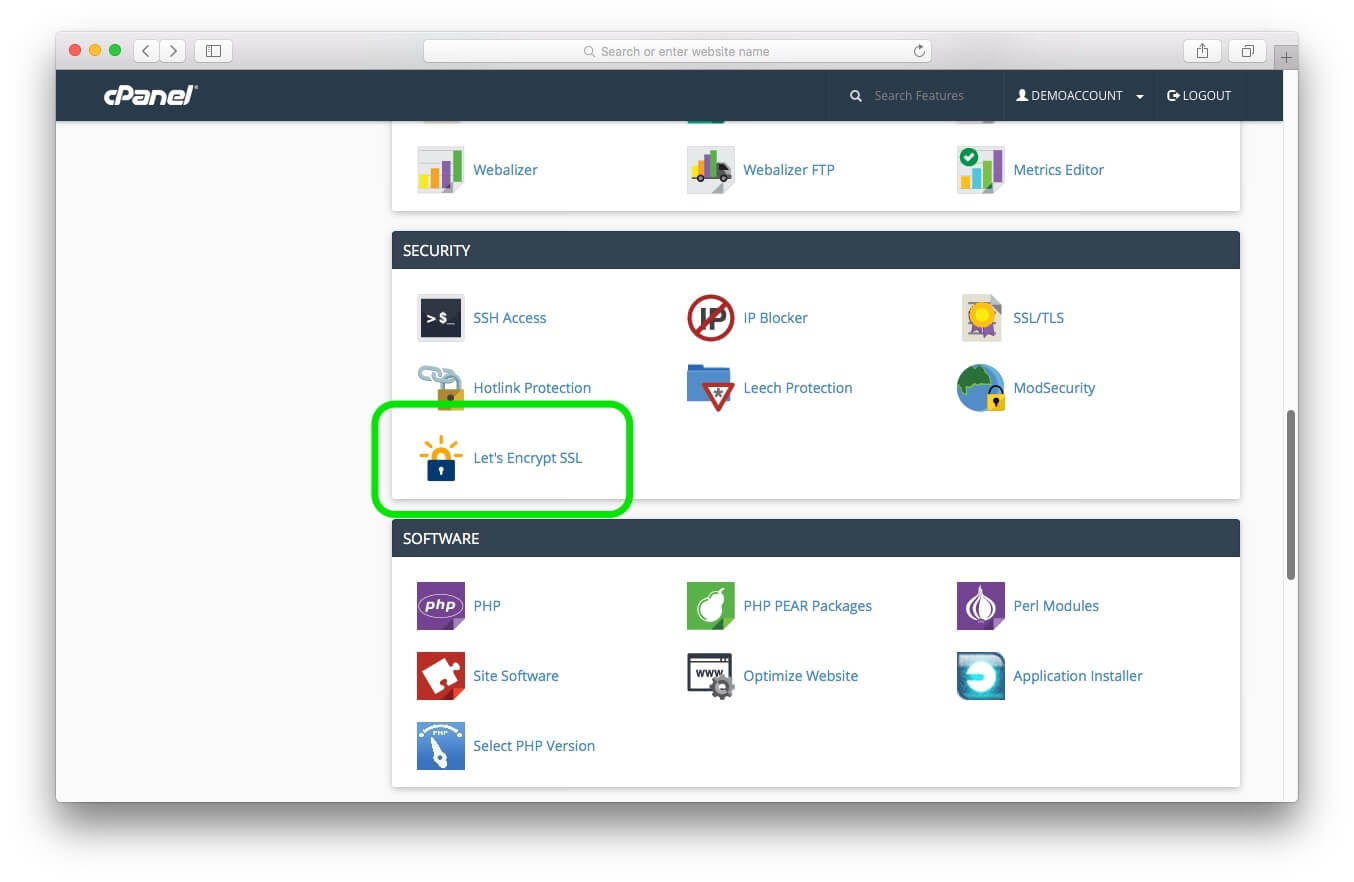
First, login to your cPanel account. Then find and click on the "Let's Encrypt SSL" option (found under the "Security" section, about half way down the page).
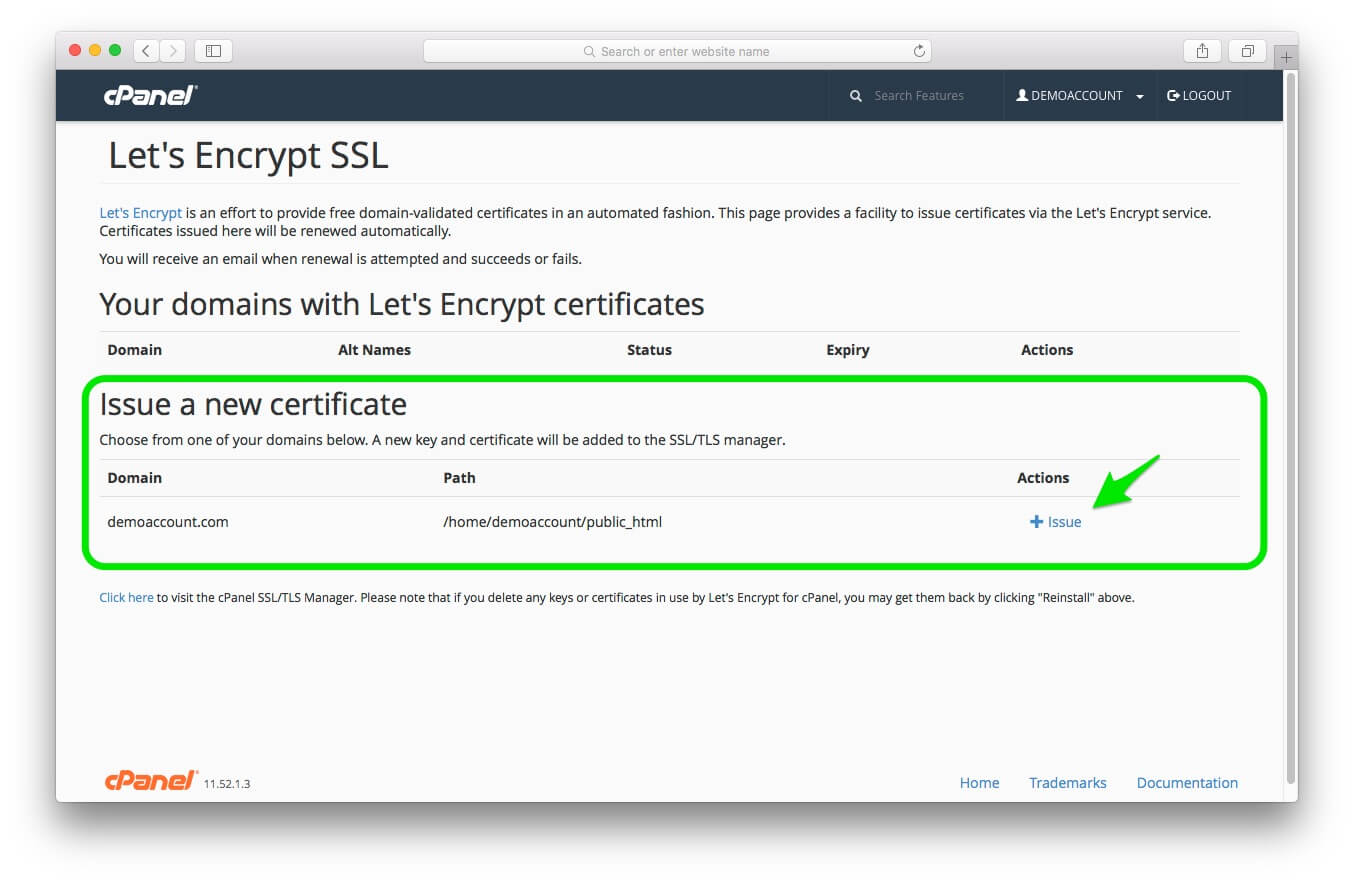
Now find the domain you wish to issue a certificate for under the "Issue a new certificate" section, clicking the "Install" button to begin installation.
On the final stage, select any alias domains you wish to include with this installation. If you're unsure, select each alias to secure every entry point to your website. There's also a checkbox to "Install mail SMTPS/POP3S/IMAPS SSL certificate" (If you want to use Encrypted SMTP/POP/IMAP settings in your email client select this option. Highly recommend for your primary domain!).
You can now hit the "Install" button. That's it, just wait a moment and your SSL certificate should now be installed. You can test this by visiting your website over HTTPS (https://www.yourdomain.com). The certificate will automatically renew as required, so once you've installed it you won't need to do anything further. It really is that easy!
If you receive an error message while installing your certificate or something isn't working as expected, please submit a support ticket and we'll be happy to assist.
This is all possible thanks to the Let's Encrypt project which allows certificates to be issued and renewed through an automated process, free of charge, in an effort to secure the web.

Tell us what has to stay up.
A short conversation with an engineer. No quote-bot, no callback queue. We'll tell you honestly if we're not the right fit.