KENNTNISSE · DIENSTLEISTUNGEN UND VPS
Generieren Sie eine Certificate Signing Request (CSR) in Windows IIS 10
Zuletzt aktualisiert 2024-03-27
Diese Anleitung führt Sie durch die Generierung einer Certificate Signing Request (CSR) in IIS. Diese Verfahren wurden in Windows 10 auf IIS 10 getestet, funktionieren aber auch in IIS 7.x und 8.x.
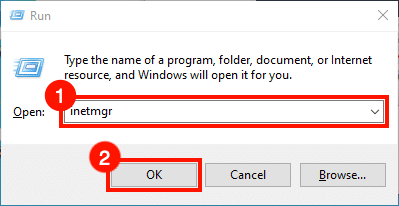
- Starten Sie IIS Manager.
Start IIS-ManagerEine schnelle Möglichkeit, dies zu tun, ist das Öffnen der & nbsp;Lauf command, dann tippen
inetmgrund klicken Sie auf OK button. - Server auswählen.
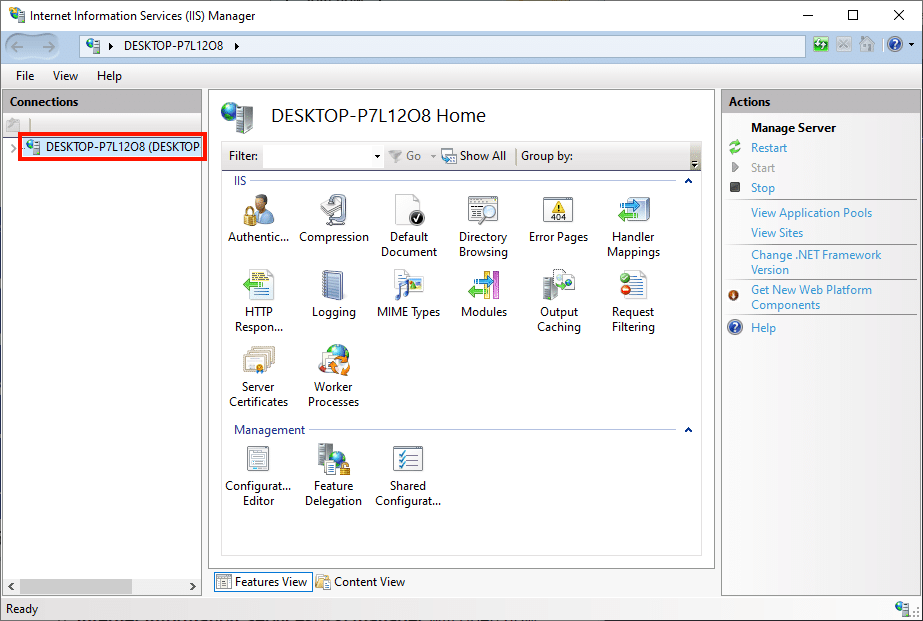
Wählen Sie den Server in der & nbsp;Anschlüsse pane, auf der linken Seite des Fensters.
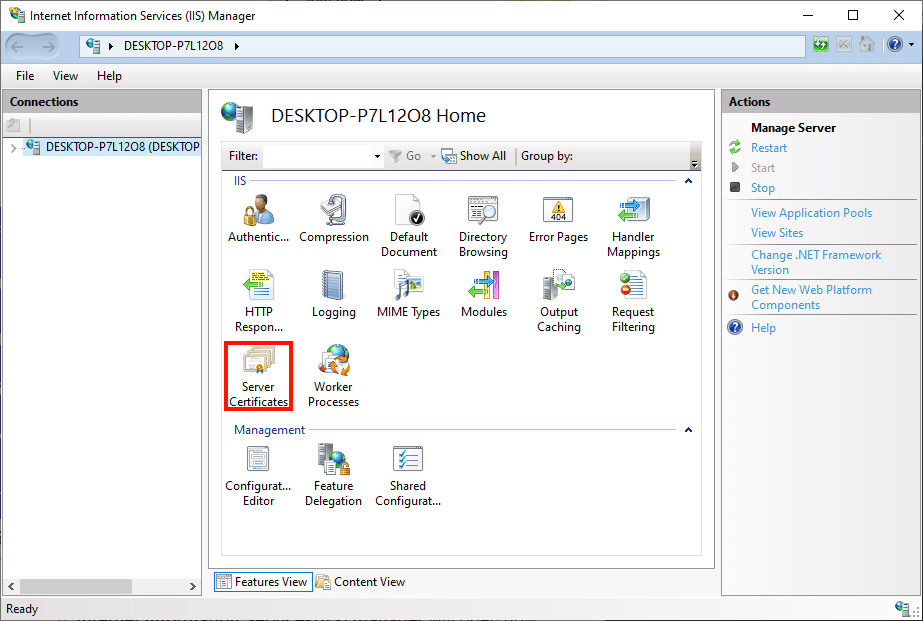
- Open Server Zertifikate.
Doppelklicken Sie auf die & NBSP;Serverzertifikate icon, befindet sich unter IIS in der mittleren Scheibe des Fensters.
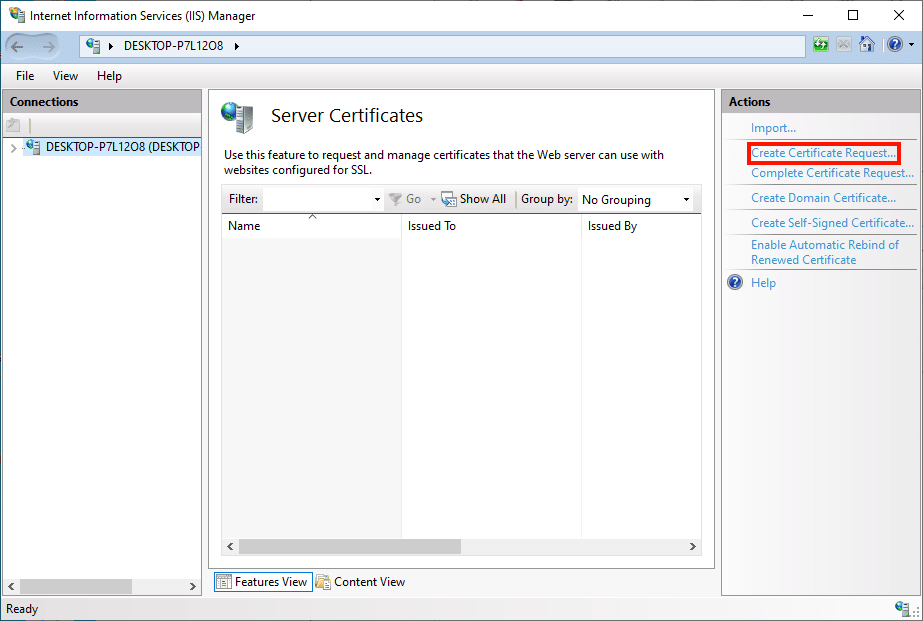
- Klicken Sie “Create Certificate Request.”
Klicken Sie auf Erstellen Sie Certificate Request & Hellip; link, in der Aktionen pane auf der rechten Seite des Fensters.
- Geben Sie Distinguished Name Properties ein.
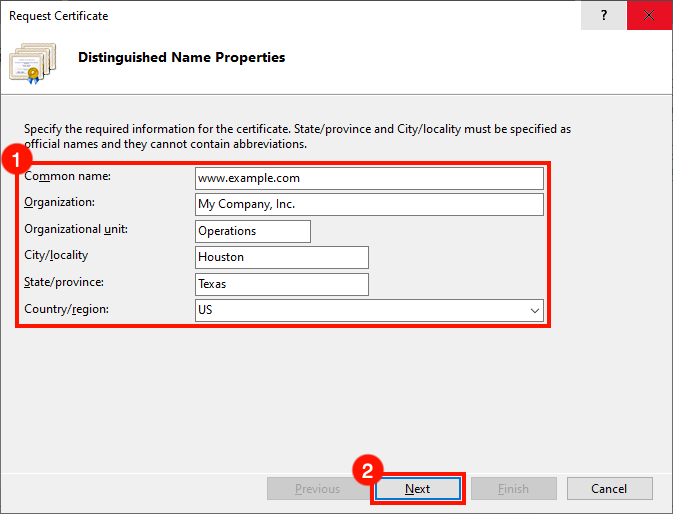
The AntragsbescheinigungDer Zauberer wird öffnen. Füllen Sie die & NBSP aus;Distinguished Name Properties (Deutsche Übersetzung) Formular mit folgenden Informationen:
• Gebräuchlicher Name:  Der Hostname, der das Zertifikat verwenden wird. Dies ist in der Regel a Vollqualifizierter Domainname, likewww.mydomain.com, oderstore.mydomain.comSie können auch eine Platzhalter verwenden, wie*.mydomain.com.
• Organisation: Der rechtliche Name Ihres Unternehmens oder Ihrer Organisation.
• Stadt/Ort:  Die Stadt, in der sich Ihr Unternehmen befindet.
• Staat/Provinz:  Der Staat, in dem sich Ihr Unternehmen befindet.
• Land/Region: Bitte verwenden Sie die Abkürzung für zweistellige Zeichen für Ihr Land.
Wenn Sie fertig sind, das Formular auszufüllen, klicken Sie auf die & nbsp;Nächster Artikel button. - Set Cryptographic Service Provider Properties.
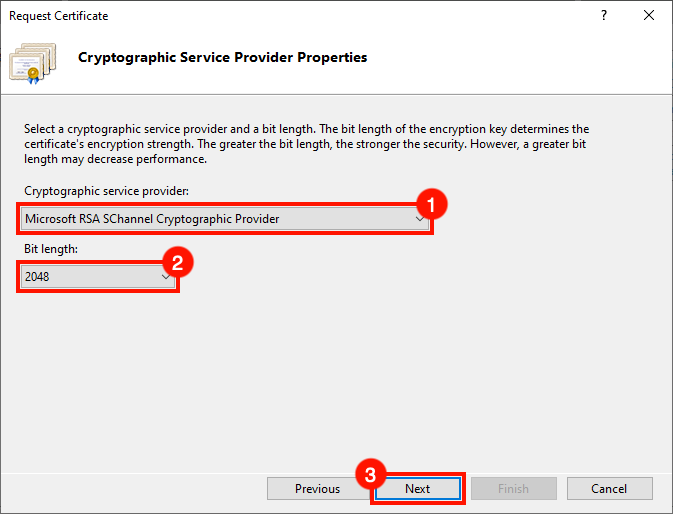
Als nächstes legen Sie die & nbsp;Eigenschaften des KryptographiedienstleistersVerwenden Sie die Dropdown-Menüs für select
Microsoft RSA SChannel Cryptographic Provideras the Anbieter kryptografischer Dienste, und ein Bit Länge von & nbsp;2048(es sei denn, Sie haben einen Grund, diese auf andere Werte zu setzen). Wenn Sie fertig sind, klicken Sie auf die & nbsp;Nächster Artikel button. - Erstellen Sie Dateiname und Finish.
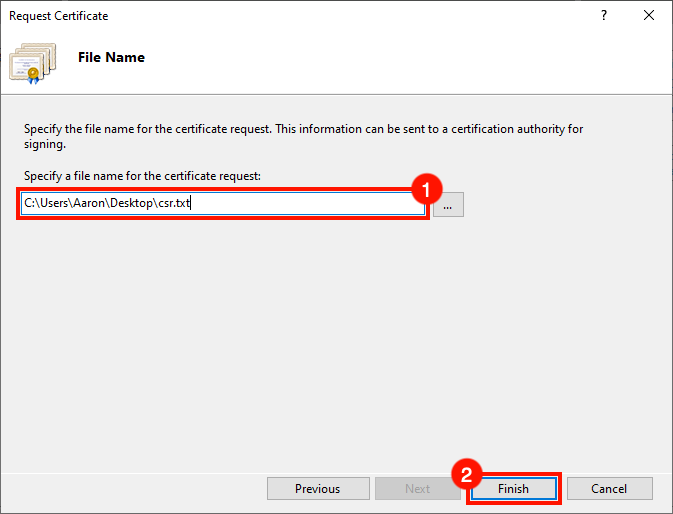
Erstellen Sie einen Dateinamen für Ihre CSR und klicken Sie dann auf die & nbsp;Ende button.
- Nächste Schritte.
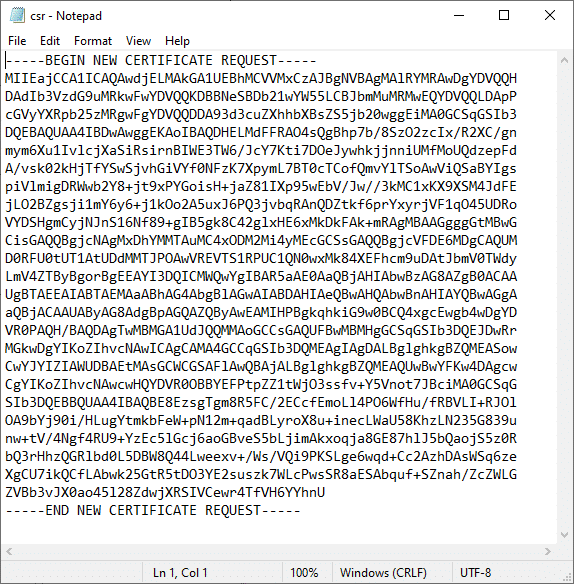
Du & rsquo; bist fertig! Öffnen Sie die CSR in einem Texteditor, wenn Sie bereit sind, sie zur Unterzeichnung an SSL.com zu senden. Für Anweisungen zum Einreichen Ihrer CSR bei SSL.com lesen Sie bitte unsere & nbsp;Leitfaden zur CSR-EinreichungWenn Sie bereit sind, Ihr Zertifikat zu installieren, sehen Sie sich bitte diese Anleitungen anInstallation and Bindebindebindebindebindebindebindebindebindebindebindebindebindebindebindebindebindebindebindebindebindebindebindebindebindebindebindebindebindebindebindebindebindebindebindebindebindebindebindebindebindebindebindebindebindebindebindebindebindebindebindebindebindebindebindebindebinde in IIS.
Sagen Sie uns, was aufbleiben muss.
Ein kurzes Gespräch mit einem Ingenieur. Kein quote-bot, keine callback-warteschlange.