WISSENSTABEN · EMAIL WIE
So fügen Sie ein E-Mail-Konto auf Ihrem Apple iPhone, iPad oder iPod touch hinzu
Zuletzt aktualisiert 2020-04-02
So fügen Sie ein E-Mail-Konto auf Ihrem iOS-Gerät hinzu
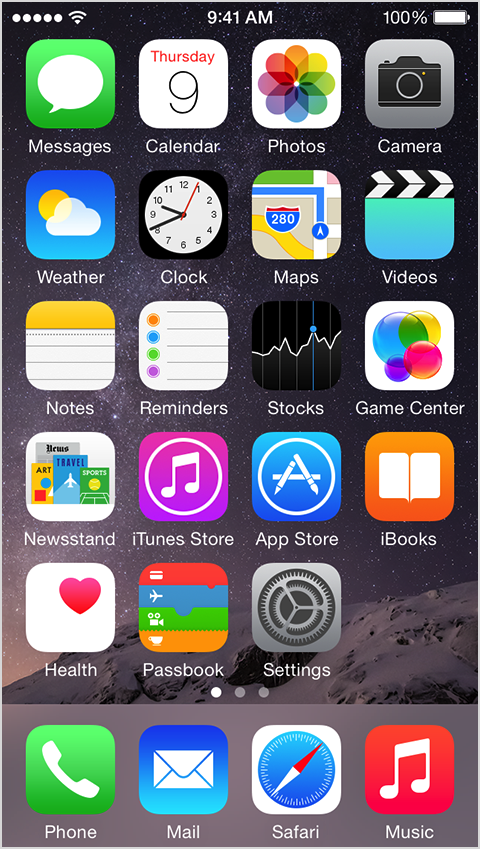
- Tap-Einstellungen.
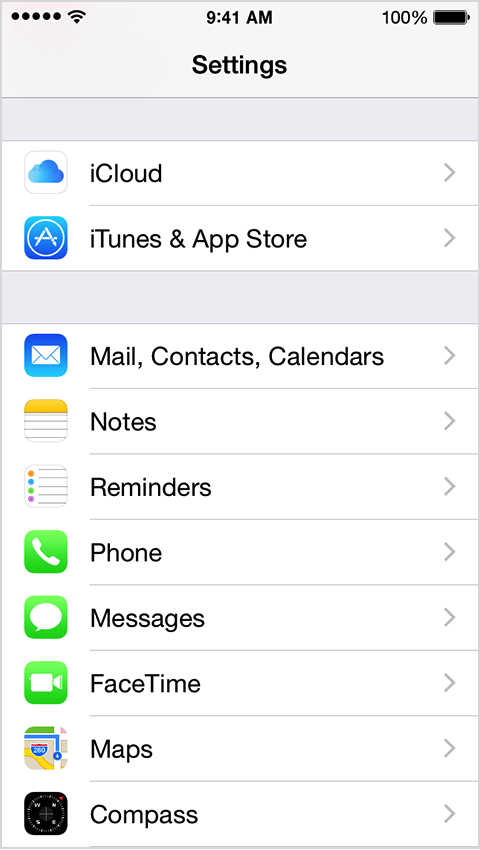
- Scrollen Sie nach unten und tippen Sie auf Mail, Kontakte, Kalender.
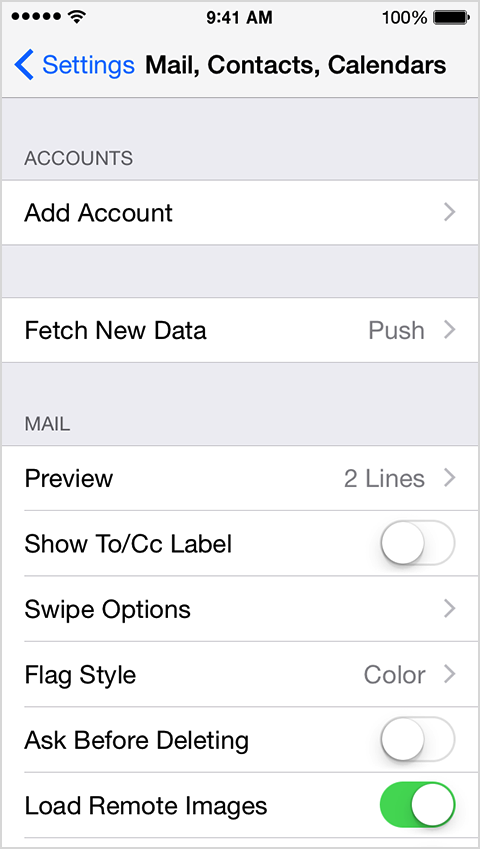
- Tippen Sie auf Add Account.
- Wählen Sie Ihren E-Mail-Provider aus. Wenn Ihr E-Mail-Anbieter nicht aufgeführt ist, tippen Sie auf Anderes > E-Mail-Konto hinzufügen.
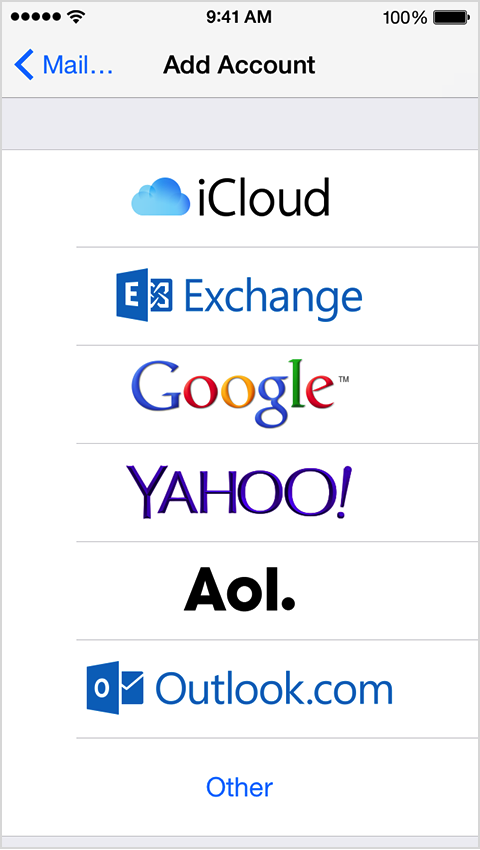
- Wählen Sonstige und geben Sie die erforderlichen Informationen an, um das Hinzufügen Ihres Kontos abzuschließen.
My email address: <strong>joe@domain.com</strong><br>My email provider: <strong>Indichosts.net</strong><strong>Incoming Mail Server Settings</strong>Account type (POP or IMAP): <strong>POP </strong>(we prefer)<br>Incoming Mail Server: <strong>domain.com or server-host-name (if using SSL)</strong><br>User Name: <strong>joe@domain.com</strong><br>Password: <strong>myPOPaccountPassword</strong><br>Incoming server port number:<strong> 110 or 995 (if using SSL)</strong>Incoming server supports SSL? (yes or no): <strong>yes (if using SSL)</strong><strong>Outgoing Mail Server Settings</strong>Outgoing mail server: <strong>domain.com or server-host-name (if using SSL)</strong><br>User name: <strong>joe@domain.com</strong><br>Password: <strong>myPOPaccountPassword</strong><br>Outgoing server port: <strong>25 or 465 (if using SSL)</strong><br>Outgoing server supports SSL? (yes or no): <strong>yes (if using SSL)</strong>Das ist es, Ihr E-Mail-Konto ist eingerichtet!
Sagen Sie uns, was aufbleiben muss.
Ein kurzes Gespräch mit einem Ingenieur. Kein quote-bot, keine callback-warteschlange.