SAVOIR LES BASSES · ÉMAIL COMMENT ÊTRE
Comment ajouter un compte e-mail sur votre iPhone Apple, iPad ou iPod touch
Dernière mise à jour 2020-04-02
Pour ajouter un compte de messagerie sur votre appareil iOS
- Appuyez sur Paramètres.
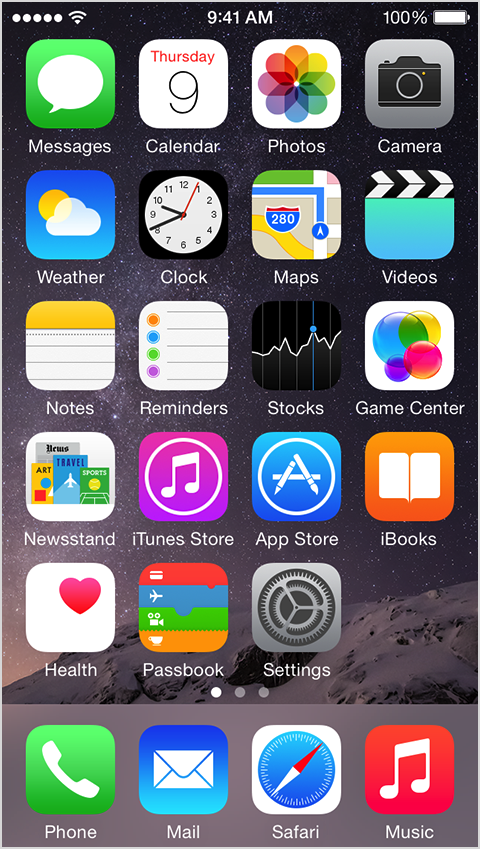
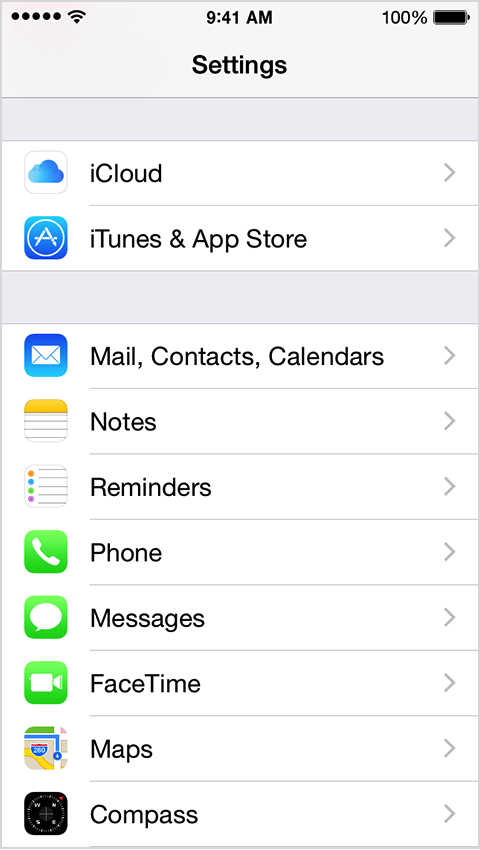
- Faites défiler vers le bas et appuyez sur Mail, Contacts, Calendriers.
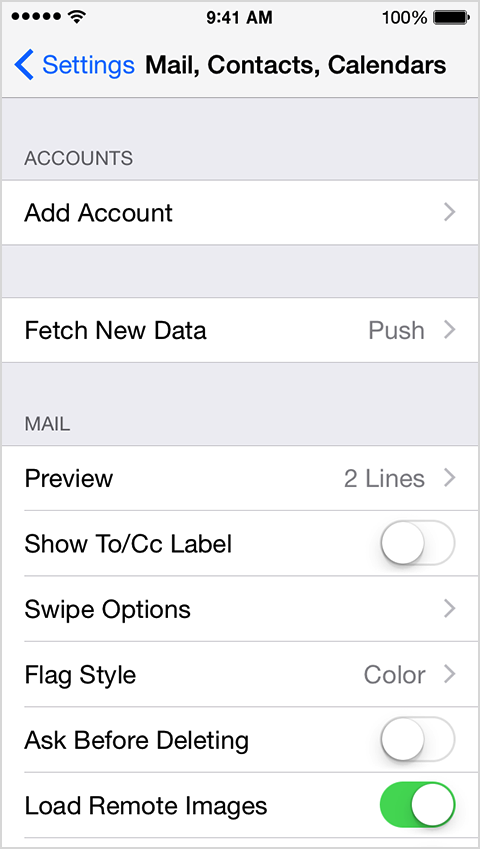
- Appuyez sur Ajouter un compte.
- Sélectionnez votre fournisseur de messagerie. Si vous ne voyez pas votre fournisseur de courriels listé, appuyez sur Autre > Ajouter un compte de messagerie.
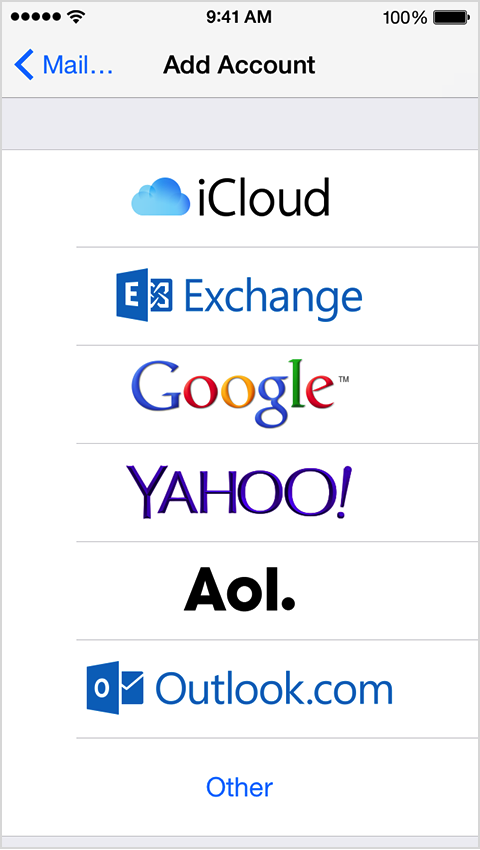
- Choisir Autres et fournir les informations nécessaires pour terminer l'ajout de votre compte.
My email address: <strong>joe@domain.com</strong><br>My email provider: <strong>Indichosts.net</strong><strong>Incoming Mail Server Settings</strong>Account type (POP or IMAP): <strong>POP </strong>(we prefer)<br>Incoming Mail Server: <strong>domain.com or server-host-name (if using SSL)</strong><br>User Name: <strong>joe@domain.com</strong><br>Password: <strong>myPOPaccountPassword</strong><br>Incoming server port number:<strong> 110 or 995 (if using SSL)</strong>Incoming server supports SSL? (yes or no): <strong>yes (if using SSL)</strong><strong>Outgoing Mail Server Settings</strong>Outgoing mail server: <strong>domain.com or server-host-name (if using SSL)</strong><br>User name: <strong>joe@domain.com</strong><br>Password: <strong>myPOPaccountPassword</strong><br>Outgoing server port: <strong>25 or 465 (if using SSL)</strong><br>Outgoing server supports SSL? (yes or no): <strong>yes (if using SSL)</strong>C'est ça, votre compte e-mail est configuré !
Dites-nous ce qui doit rester debout.
Une courte conversation avec un ingénieur. Pas de guillemet, pas de queue de rappel.