जानकारी का आधार · ईमेल करें कि कैसे
अपने एप्पल आईफोन, आईपैड या आईपॉड टच पर ईमेल खाता कैसे जोड़ें
अंतिम बार अद्यतन किया गया 2020-04-02
अपने आई. ओ. एस. उपकरण पर एक ईमेल खाता जोड़ने के लिए
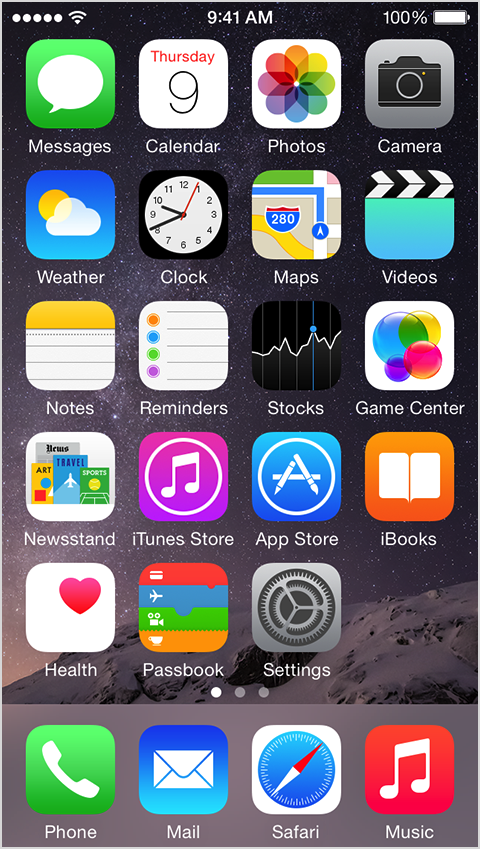
- सेटिंग्स पर क्लिक करें।
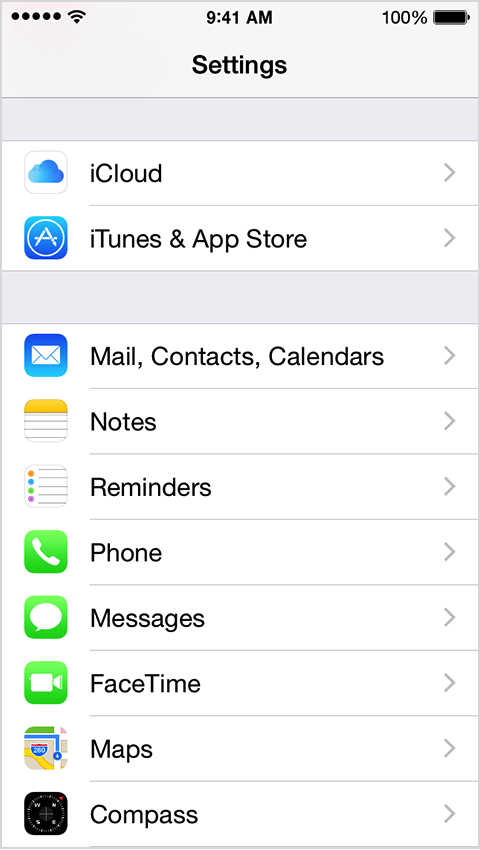
- नीचे स्क्रॉल करें और मेल, संपर्क, कैलेंडर पर टैप करें।
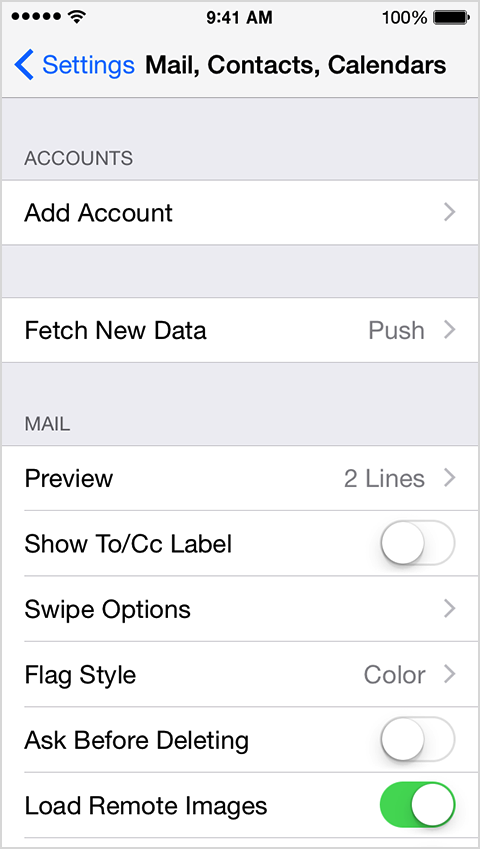
- खाता जोड़ें पर क्लिक करें।
- अपने ईमेल प्रदाता का चयन करें। यदि आप अपने ईमेल प्रदाता को सूचीबद्ध नहीं देखते हैं, तो अन्य> मेल खाता जोड़ें पर टैप करें।
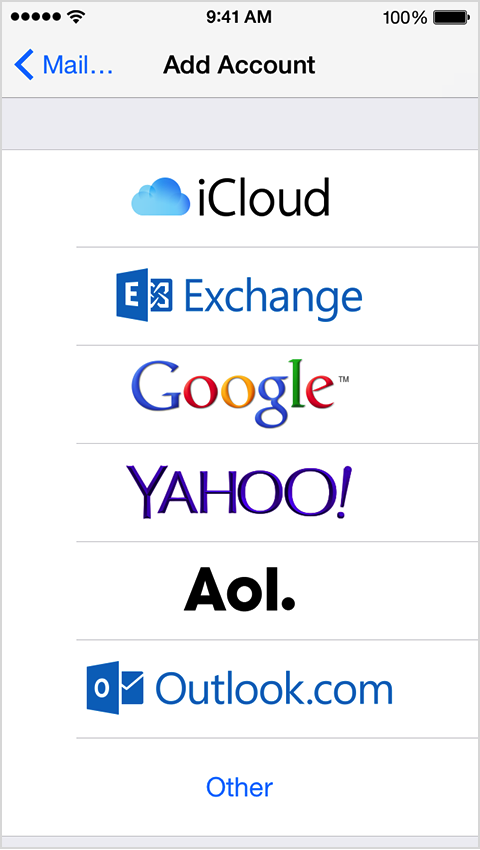
- चुनें अन्य और अपना खाता जोड़ने के लिए आवश्यक जानकारी प्रदान करें।
My email address: <strong>joe@domain.com</strong><br>My email provider: <strong>Indichosts.net</strong><strong>Incoming Mail Server Settings</strong>Account type (POP or IMAP): <strong>POP </strong>(we prefer)<br>Incoming Mail Server: <strong>domain.com or server-host-name (if using SSL)</strong><br>User Name: <strong>joe@domain.com</strong><br>Password: <strong>myPOPaccountPassword</strong><br>Incoming server port number:<strong> 110 or 995 (if using SSL)</strong>Incoming server supports SSL? (yes or no): <strong>yes (if using SSL)</strong><strong>Outgoing Mail Server Settings</strong>Outgoing mail server: <strong>domain.com or server-host-name (if using SSL)</strong><br>User name: <strong>joe@domain.com</strong><br>Password: <strong>myPOPaccountPassword</strong><br>Outgoing server port: <strong>25 or 465 (if using SSL)</strong><br>Outgoing server supports SSL? (yes or no): <strong>yes (if using SSL)</strong>बस, आपका ईमेल खाता सेट हो गया है!
हमें बताएँ कि क्या रहना है।
एक इंजीनियर के साथ एक छोटी सी बातचीत। कोई उद्धरण-बॉट नहीं, कोई कॉलबैक कतार नहीं।