Saberlo · EMAIL Cómo
Cómo agregar una cuenta de correo electrónico en su Apple iPhone, iPad o iPod touch
Última actualización 2020-04-02
Para agregar una cuenta de correo electrónico en tu dispositivo iOS
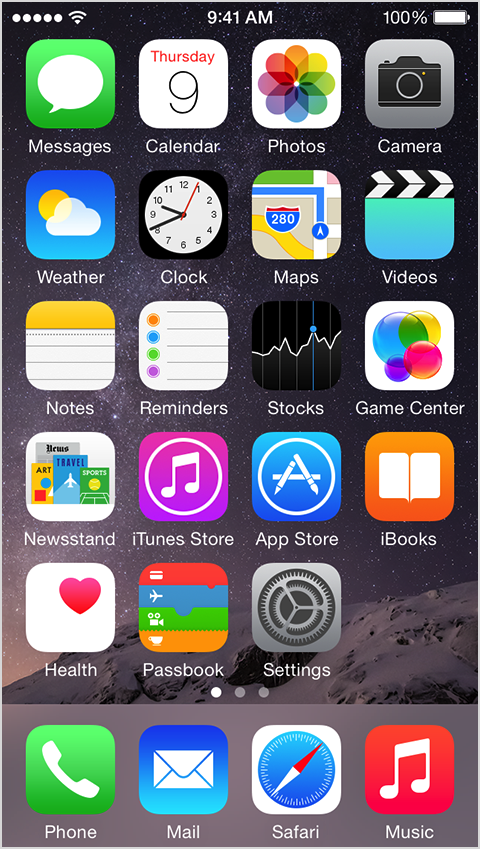
- Toca Configuración.
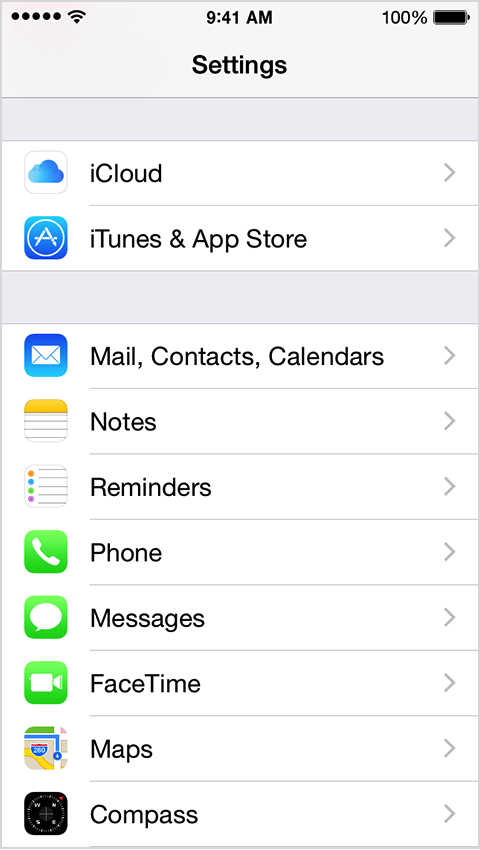
- Desplazarse y pulsar Correo, Contactos, Calendarios.
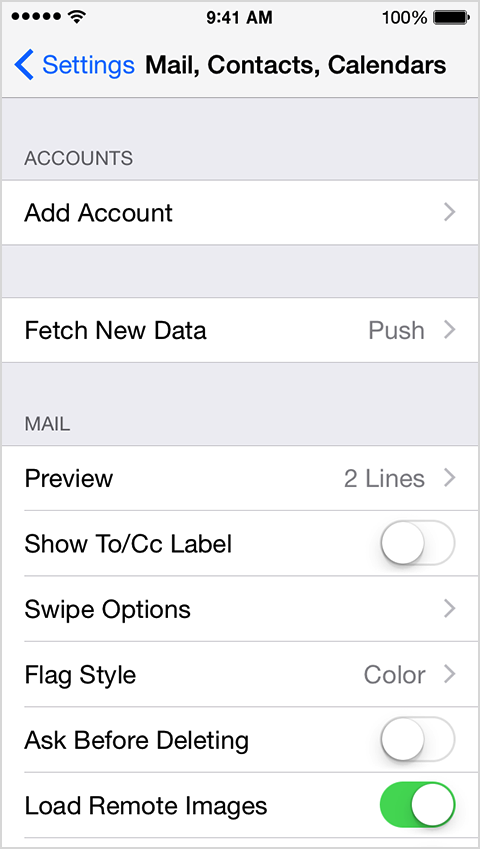
- Pulsa Añadir Cuenta.
- Seleccione su proveedor de correo electrónico. Si no ve a su proveedor de correo electrónico listado, presione Otros √≥n Añadir cuenta de correo.
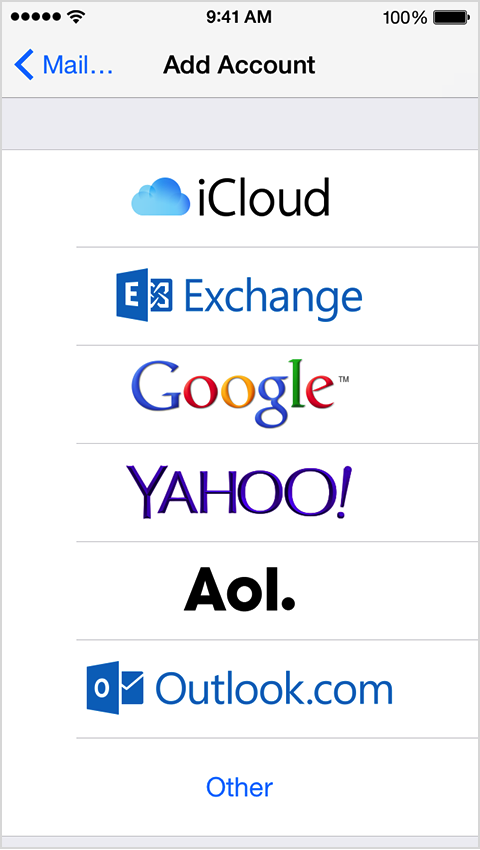
- Elija Otros y proporcionar la información necesaria para terminar de agregar su cuenta.
My email address: <strong>joe@domain.com</strong><br>My email provider: <strong>Indichosts.net</strong><strong>Incoming Mail Server Settings</strong>Account type (POP or IMAP): <strong>POP </strong>(we prefer)<br>Incoming Mail Server: <strong>domain.com or server-host-name (if using SSL)</strong><br>User Name: <strong>joe@domain.com</strong><br>Password: <strong>myPOPaccountPassword</strong><br>Incoming server port number:<strong> 110 or 995 (if using SSL)</strong>Incoming server supports SSL? (yes or no): <strong>yes (if using SSL)</strong><strong>Outgoing Mail Server Settings</strong>Outgoing mail server: <strong>domain.com or server-host-name (if using SSL)</strong><br>User name: <strong>joe@domain.com</strong><br>Password: <strong>myPOPaccountPassword</strong><br>Outgoing server port: <strong>25 or 465 (if using SSL)</strong><br>Outgoing server supports SSL? (yes or no): <strong>yes (if using SSL)</strong>¡Eso es todo, tu cuenta de correo electrónico está lista!
Díganos qué tiene que estar levantado.
Una breve conversación con un ingeniero. Sin cita-bot, sin cola de callback.