CONOCIDOS · SERVICIOS DEDICAADOS " VPS
Crear CSR e instalar certificado SSL - Windows Server: IIS 10+
Última actualización 2024-03-27
Utilice las instrucciones en esta página para utilizar IIS 10 para crear su solicitud de firma de certificados (CSR) y luego instalar su certificado SSL en su servidor de Windows 2016.
nbsp;
1. IIS 10: Cómo crear su RSC en Windows Server 2016
Usando IIS 10 para crear su RSC
-
En el punto de vista de la crisis;Windows& nbsp;start menu, type bordenbsp;Administrador de Servicios de Información de Internet (IIS)& nbsp; y abrirlo.
-
In повов;Administrador de Servicios de Información de Internet (IIS), en el pañuelo;Conexiones árbol de menú (panel izquierda), localizar y haga clic en el nombre del servidor.
-
En el nombre del servidor,Inicio" nbsp;page (center pane), in the limitnbsp;IIS" nbsp;section, double-clickCertificados de servidor.
-
En el punto de vista de la crisis;Certificados de servidor" nbsp;page (center pane), in the limitnbsp;Acciones& nbsp;menu (pane derecho), haga clic en el нелив;Crear solicitud de certificados& nbsp;link.
-
En el punto de vista de la crisis;Solicitud de certificado" Nbsp;wizard, on the recíprocanbsp;Propiedades de nombre distinguido page, provide the information specified below and then click adultnbsp;Siguiente:
Nombre común: Escriba el nombre de dominio totalmente calificado (FQDN) (por ejemplo, пререние;www.example.com). nbsp; nbsp; Organización: Escriba su empresa implicarsquo;s nombre legalmente registrado (por ejemplo, провов;Tu Compañera, Inc.). nbsp; nbsp; Unidad de organización: El nombre de su departamento dentro de la organización. Con frecuencia esta entrada será catalogada como "IT", "Seguridad Web", nbsp; o simplemente se deja en blanco. nbsp; nbsp; Ciudad/localidad: Introduzca la ciudad donde su empresa está legalmente ubicada. nbsp; nbsp; Estado/provincia: Escriba el estado/provincia donde su empresa está legalmente ubicada. nbsp; nbsp; País: En la lista desplegable, seleccione el país donde su empresa está legalmente ubicada. -
En el punto de vista de la crisis;Propiedades de proveedores de servicios ciptoggráficos& nbsp;page, proporcionar la información a continuación y luego hacer clic enSiguiente.
Cryptographic En la lista desplegable, seleccione pulsanbsp;Proveedor de Críptografía de Microsoft RSA SChannel, proveedor de servicios: a menos que tenga un proveedor criptográfico específico. nbsp; nbsp; Longitud del bit: En la lista desplegable selecta de plombsp;2048, a menos que tenga una razón específica nbsp; por optar por una longitud de bit más grande. -
En el punto de vista de la crisis;Nombre del archivo" nbsp;page, under limitnbsp;Especifique un nombre de archivo para la solicitud de certificado, haga clic en el botón ;"hellip; box para navegar a un lugar donde desea guardar su RSC.
Nota: Recuerde el nombre de archivo que elija y la ubicación a la que guarda su archivo csr.txt. Si acaba de introducir un nombre de archivo sin navegar por un lugar, su RSC terminará en C:\Windows\System32.
-
Cuando se hace, haga clic enAcabado.
-
Utilice un editor de texto (como Notepad) para abrir el archivo. Luego, copiar el texto, incluyendo el texto;---------------------------------------------------------------------------------------------------------------------------------------------------------------------------------------------------------------------------------------------------------------------------------------------------------" Nbsp; y Cónbsp;---------------------------------& nbsp;tags, y pegarlo en el formulario de pedido DigiCert.
Listo para ordenar su certificado SSL
-
Después de recibir su certificado SSL de Indichosts.net, puede instalarlo.
2. IIS 10: Cómo instalar y configurar su certificado SSL en Windows Server
Después de validar y emitir su certificado SSL, usted necesita instalarlo en el servidor de Windows 2016 donde se generó la RSC. Entonces, debe configurar el servidor para que lo use.
- (Certificado de la escritura) Cómo instalar y configurar su certificado SSL
- (Cedidos de Multiple) Cómo instalar y configurar sus certificados SSL usando SNI
(Certificado de la escritura) Cómo instalar su certificado SSL y configurar el servidor para utilizarlo
Instalar el certificado SSL
-
-
En el servidor donde creó la RSC, guarde el archivo SSL certificado .cer (por ejemplo,, Pulsbsp;tu domain com.cerQue DigiCert te envió.
-
En el punto de vista de la crisis;Windows& nbsp;start menu, type bordenbsp;Administrador de Servicios de Información de Internet (IIS)& nbsp; y abrirlo.
-
In повов;Administrador de Servicios de Información de Internet (IIS), en el pañuelo;Conexiones menu árbol (panel izquierda), localizar y hacer clic en el nombre del servidor.
-
En el nombre del servidor,Inicio" nbsp;page (center pane), in the limitnbsp;IIS" nbsp;section, double-clickCertificados de servidor.
-
En el punto de vista de la crisis;Certificados de servidor" nbsp;page (center pane), in the limitnbsp;Acciones& nbsp;menu (pane derecho), haga clic en el нелив;Solicitud de certificado completo& nbsp;link.
-
En el punto de vista de la crisis;Solicitud de certificado completo" Nbsp;wizard, on the recíprocanbsp;Especificar la respuesta de la autoridad certificado& nbsp;page, do the following and then click simultáneamententbsp;OK:
Nombre del archivo que contiene Haga clic en el botón ."hellip;& nbsp;box y navegar hacia y seleccionar el archivo .cer respuesta de la autoridad certificadora: (por ejemplo, tarde)tu domain com.cerQue DigiCert te envió. nbsp; nbsp; Nombre amistoso: Escriba un nombre amistoso para el certificado. nbsp; El nombre amistoso no es parte del certificado; en cambio, se utiliza para identificar el certificado. nbsp; Recomendamos que agregue DigiCert y la fecha de caducidad al final de su nombre amistoso, por ejemplo: Pulsbsp; su sitio-digicert-(fecha de expansión). nbsp; Esta información ayuda a identificar el emisor y fecha de caducidad para cada certificado. También ayuda a distinguir múltiples certificados con el mismo nombre de dominio. nbsp; nbsp; Seleccione una tienda de certificados En la lista desplegable, seleccione pulsanbsp;Hosting Web. para el nuevo certificado: nbsp; -
Ahora que ha instalado con éxito su certificado SSL, necesita asignar el certificado al sitio adecuado.
-
Assign SSL Certificado
-
In повов;Administrador de Servicios de Información de Internet (IIS), en el pañuelo;Conexiones menu árbol (panel izquierda), ampliar el nombre del servidor en el que se instaló el certificado. Luego amplíe el punto de vista;Sitios y haga clic en el sitio que desea utilizar el certificado SSL para asegurar.
-
En el sitio webInicio" nbsp;page, in the limitnbsp;Acciones" nbsp;menu (derecha), bajo el punto de vista de la derecha;Editar sitio, haga clic en el botón ;- Lazos.& nbsp;link.
-
En el punto de vista de la crisis;Vinculación de sitios& nbsp;window, click Convennbsp;Añadir.
-
En el punto de vista de la crisis;Agregar los enlaces de sitios& nbsp;window, haga lo siguiente y luego haga clic enOK:
Tipo: En la lista desplegable, seleccione pulsanbsp;https. nbsp; nbsp; Dirección IP: En la lista desplegable, seleccione la dirección IP de la lista sitio o selectoAll Unassigned. nbsp; nbsp; Puerto: Tipo port lisp;443El puerto sobre el que el tráfico es seguro por SSL es el puerto 443. nbsp; nbsp; Certificado SSL: En la lista desplegable, seleccione su nuevo certificado SSL (por ejemplo, dúont;yourdomain.com). -
Su certificado SSL está instalado, y el sitio web está configurado para aceptar conexiones seguras.
(Cedidos de Multiple) Cómo instalar sus certificados SSL y configurar el servidor para utilizarlos mediante SNI
Esta instrucción explica cómo instalar múltiples certificados SSL y asignarlos usando SNI. El proceso se divide en dos partes como sigue:
-
Instalar y Configurar su primer certificado SSL
-
Instalación y configuración de todos los certificados adicionales
Instalar el primer certificado SSL
Haga este primer conjunto de instrucciones sólo una vez, para el primer certificado SSL.
-
En el servidor donde creó la RSC, guarde el archivo SSL certificado .cer (por ejemplo,, Pulsbsp;tu domain com.cerQue DigiCert te envió.
-
En el punto de vista de la crisis;Windows& nbsp;start menu, type bordenbsp;Administrador de Servicios de Información de Internet (IIS)& nbsp; y abrirlo.
-
In повов;Administrador de Servicios de Información de Internet (IIS), en el pañuelo;Conexiones menu árbol (panel izquierda), localizar y hacer clic en el nombre del servidor.
-
En el nombre del servidor,Inicio" nbsp;page (center pane), in the limitnbsp;IIS" nbsp;section, double-clickCertificados de servidor.
-
En el punto de vista de la crisis;Certificados de servidor" nbsp;page (center pane), in the limitnbsp;Acciones& nbsp;menu (pane derecho), haga clic en el нелив;Solicitud de certificado completo& nbsp;link.
-
En el punto de vista de la crisis;Solicitud de certificado completo" Nbsp;wizard, on the recíprocanbsp;Especificar la respuesta de la autoridad certificado& nbsp;page, do the following and then click simultáneamententbsp;OK:
Nombre del archivo que contiene Haga clic en el botón ."hellip;& nbsp;box y navegar hacia y seleccionar el archivo .cer respuesta de la autoridad certificadora: (por ejemplo, tarde)tu domain com.cerQue DigiCert te envió. nbsp; nbsp; Nombre amistoso: Escriba un nombre amistoso para el certificado. nbsp; El nombre amistoso no es parte del certificado; en cambio, se utiliza para identificar el certificado. nbsp; Recomendamos que agregue DigiCert y la fecha de caducidad al final de su nombre amistoso, por ejemplo: Pulsbsp; su sitio-digicert-(fecha de expansión). nbsp; Esta información ayuda a identificar el emisor y fecha de caducidad para cada certificado. También ayuda a distinguir múltiples certificados con el mismo nombre de dominio. nbsp; nbsp; Seleccione una tienda de certificados En la lista desplegable, seleccione pulsanbsp;Hosting Web. para el nuevo certificado: nbsp; -
Ahora que ha instalado con éxito su certificado SSL, necesita asignar el certificado al sitio adecuado.
-
In повов;Administrador de Servicios de Información de Internet (IIS), en el pañuelo;Conexiones menu árbol (panel izquierda), ampliar el nombre del servidor en el que se instaló el certificado. Luego amplíe el punto de vista;Sitios y haga clic en el sitio que desea utilizar el certificado SSL para asegurar.
-
En el sitio webInicio" nbsp;page, in the limitnbsp;Acciones" nbsp;menu (derecha), bajo el punto de vista de la derecha;Editar sitio, haga clic en el botón ;- Lazos.& nbsp;link.
-
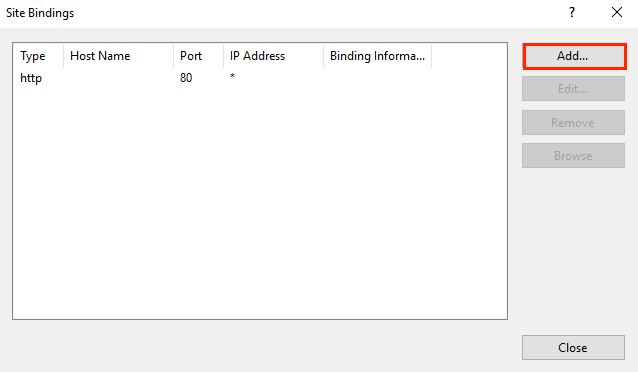
En el punto de vista de la crisis;Vinculación de sitios& nbsp;window, click Convennbsp;Añadir.
-
En el punto de vista de la crisis;Agregar los enlaces de sitios& nbsp;window, haga lo siguiente y luego haga clic enOK:
Tipo: En la lista desplegable, seleccione pulsanbsp;https. nbsp; nbsp; Dirección IP: En la lista desplegable, seleccione la dirección IP de la lista sitio o selectoAll Unassigned. nbsp; nbsp; Puerto: Tipo port lisp;443El puerto sobre el que el tráfico es seguro por SSL es el puerto 443. nbsp; nbsp; Certificado SSL: En la lista desplegable, seleccione su nuevo certificado SSL (por ejemplo, dúont;yourdomain.com). -
Su primer certificado SSL está ahora instalado, y el sitio web configurado para aceptar conexiones seguras.
Instalar certificados SSL adicionales
Para instalar y asignar cada certificado SSL adicional, repita los pasos siguientes, según sea necesario.
-
En el servidor donde creó la RSC, guarde el archivo SSL certificado .cer (por ejemplo,, Pulsbsp;tu domain com.cerQue DigiCert te envió.
-
En el punto de vista de la crisis;Windows& nbsp;start menu, type bordenbsp;Administrador de Servicios de Información de Internet (IIS)& nbsp; y abrirlo.
-
In повов;Administrador de Servicios de Información de Internet (IIS), en el pañuelo;Conexiones menu árbol (panel izquierda), localizar y hacer clic en el nombre del servidor.
-
En el nombre del servidor,Inicio" nbsp;page (center pane), in the limitnbsp;IIS" nbsp;section, double-clickCertificados de servidor.
-
En el punto de vista de la crisis;Certificados de servidor" nbsp;page (center pane), in the limitnbsp;Acciones& nbsp;menu (pane derecho), haga clic en el нелив;Solicitud de certificado completo& nbsp;link.
-
En el punto de vista de la crisis;Solicitud de certificado completo" Nbsp;wizard, on the recíprocanbsp;Especificar la respuesta de la autoridad certificado& nbsp;page, do the following and then click simultáneamententbsp;OK:
Nombre del archivo que contiene Haga clic en el botón ."hellip;& nbsp;box y navegar hacia y seleccionar el archivo .cer respuesta de la autoridad certificadora: (por ejemplo, tarde)tu domain com.cerQue DigiCert te envió. nbsp; nbsp; Nombre amistoso: Escriba un nombre amistoso para el certificado. nbsp; El nombre amistoso no es parte del certificado; en cambio, se utiliza para identificar el certificado. nbsp; Recomendamos que agregue DigiCert y la fecha de caducidad al final de su nombre amistoso, por ejemplo: Pulsbsp; su sitio-digicert-(fecha de expansión). nbsp; Esta información ayuda a identificar el emisor y fecha de caducidad para cada certificado. También ayuda a distinguir múltiples certificados con el mismo nombre de dominio. nbsp; nbsp; Seleccione una tienda de certificados En la lista desplegable, seleccione pulsanbsp;Hosting Web. para el nuevo certificado: nbsp; -
Ahora que ha instalado con éxito su certificado SSL, necesita asignar el certificado al sitio adecuado.
-
In повов;Administrador de Servicios de Información de Internet (IIS), en el pañuelo;Conexiones menu árbol (panel izquierda), ampliar el nombre del servidor en el que se instaló el certificado. Luego amplíe el punto de vista;Sitios y haga clic en el sitio que desea utilizar el certificado SSL para asegurar.
-
En el sitio webInicio" nbsp;page, in the limitnbsp;Acciones" nbsp;menu (derecha), bajo el punto de vista de la derecha;Editar sitio, haga clic en el botón ;- Lazos.& nbsp;link.
-
En el punto de vista de la crisis;Vinculación de sitios& nbsp;window, click Convennbsp;Añadir.
-
En el punto de vista de la crisis;Agregar los enlaces de sitios& nbsp;window, haga lo siguiente y luego haga clic enOK:
Tipo: En la lista desplegable, seleccione pulsanbsp;https. nbsp; nbsp; Dirección IP: En la lista desplegable, seleccione la dirección IP de la lista sitio o selectoAll Unassigned. nbsp; nbsp; Puerto: Tipo port lisp;443El puerto sobre el que el tráfico es seguro por SSL es el puerto 443. nbsp; nbsp; Nombre de la mansión: Escriba el nombre de host que desea asegurar. nbsp; nbsp; Require Server Después de entrar en el nombre del host, compruebe esta caja. Nombre Indicación: Esto es necesario para todos los certificados/sites adicionales, después de haber instalado el primer certificado y asegurado el sitio principal. nbsp; nbsp; Certificado SSL: En la lista desplegable, seleccione un certificado SSL adicional (por ejemplo, terceronbsp;tudomain2.com). -
Ha instalado con éxito otro certificado SSL y configurado el sitio web para aceptar conexiones seguras.
nbsp;
Díganos qué tiene que estar levantado.
Una breve conversación con un ingeniero. Sin cita-bot, sin cola de callback.